The intended human journey
From an unfinished thought to a choice you understand.
Waymorrow is intended to help a person think through something, find a useful direction and decide what happens next. The experience should begin with the person's question, rather than asking them to learn the system's internal vocabulary.
The steps below explain that intended experience. They are illustrative, not a demonstration of a working public application. Earlier prototypes and interface studies remain development history after the October reset.
- 01
Start with what you have
A rough idea, a concern or a question can be enough to begin. You may know what is frustrating you before you know what to ask for. Abriella's intended role is to help find the useful purpose in what you mean.
A helpful response would work with ordinary, approximate wording and ask about details when they change the answer. You should be able to say that the first interpretation missed the point without starting the conversation again.
You decide which question is worth pursuing.
- 02
Make the important context visible
Useful context includes the outcome you want, practical constraints, a correction to an earlier idea and questions that remain open. Those details should be available to review while the conversation develops.
A remembered detail may be incomplete or out of date. The intended experience should make it possible to correct that detail before it steers the work. Continuity means carrying relevant context with understandable limits; it does not mean perfect recall or automatic learning.
You can correct the picture and decide what information belongs in it.
- 03
Explore without quietly starting work
Thinking aloud needs space. Asking whether an idea makes sense, comparing approaches or wondering what something would involve should remain a conversation until an action is actually chosen.
Abriella should be able to explain options, consequences and uncertainty in a way you can question. If a useful offer follows, you should be able to decline it. A conversation, a visual cue or an encouraging answer must not silently become permission to change something.
You choose whether an option stays an idea or becomes a proposal.
- 04
Choose a manageable next step
A useful proposal makes the next step concrete: what it would accomplish, which information it needs, what it might change and how you would recognize a useful result. It should also explain dependencies or missing capabilities that could stop the work.
The next step may be small. Clarifying one requirement or comparing two drafts can be more useful than producing a large plan too early. Any future consequential work would depend on the tools, permissions and review appropriate to that particular action.
You may revise the scope, pause or agree to the specific next step.
- 05
See what supports the answer
A source statement, an interpretation, a proposed action and a checked result answer different questions. When the distinction affects your decision, the explanation should make it understandable.
If sources disagree, something is missing or an earlier detail may have changed, the uncertainty should stay visible. A fluent answer should not make a weak basis look stronger. The aim is to give you enough context to judge what deserves your confidence and what needs another look.
You decide what to rely on and which questions still need evidence.
- 06
Review, revise or return
A result should be reviewed against the original need. What actually happened? Which checks were completed? What remains incomplete or uncertain? A passing technical check may still leave an important human requirement unanswered.
The intended experience should support correction and recovery as carefully as the successful path. An interrupted attempt should not be described as completed, and a retry should make sense for the action involved. You should be able to stop, change direction or return later without losing the reasons behind the work.
You retain the decision to accept, revise, pause or stop.
An idea for something to make
You have a rough idea for a small tool, but several possible audiences and no clear first version.
The intended conversation would compare who needs it, identify the smallest useful outcome and make the tradeoffs between possible beginnings understandable. A short explanation or sketch might be the right next result.
You choose which problem matters and whether the proposal deserves more work. This example does not demonstrate automatic software generation or deployment.
Two notes that disagree
You have two project notes that describe different requirements and do not know which one to use.
A useful explanation would identify the disagreement, distinguish dates and sources, and ask for a decision when the available record cannot settle it. It should preserve the unresolved question instead of combining incompatible details into a confident answer.
You decide which information should guide the work. This example does not advertise an available file upload, web research or source-connection service.
Returning after an interruption
You return to an idea after a break and discover that one of your original constraints has changed.
The intended experience would help you find the relevant conversation, explain the last agreed direction and make the new constraint visible. Missing context should be acknowledged, and earlier corrections should remain part of the picture.
You decide what still applies and where to resume. Reliable continuity and recovery still need to be demonstrated through real use.
What would make the experience worth returning to?
The product needs to make sense beyond a prepared demonstration. A first encounter should be understandable; a correction should improve the conversation; longer work should remain coherent through interruptions and uncertainty.
Those are questions for real people using the product, supported by technical checks. A polished interface, a stored transcript or a passing test can establish one part of the work without establishing the whole experience.
- Can a person begin without learning special terminology?
- Does a correction change the assistant's understanding without losing the rest of the request?
- Can the person understand a limitation and still get help with the part that is possible?
- Do permission, interruption and recovery remain understandable when something goes wrong?
Design chronology
How to read the interface history
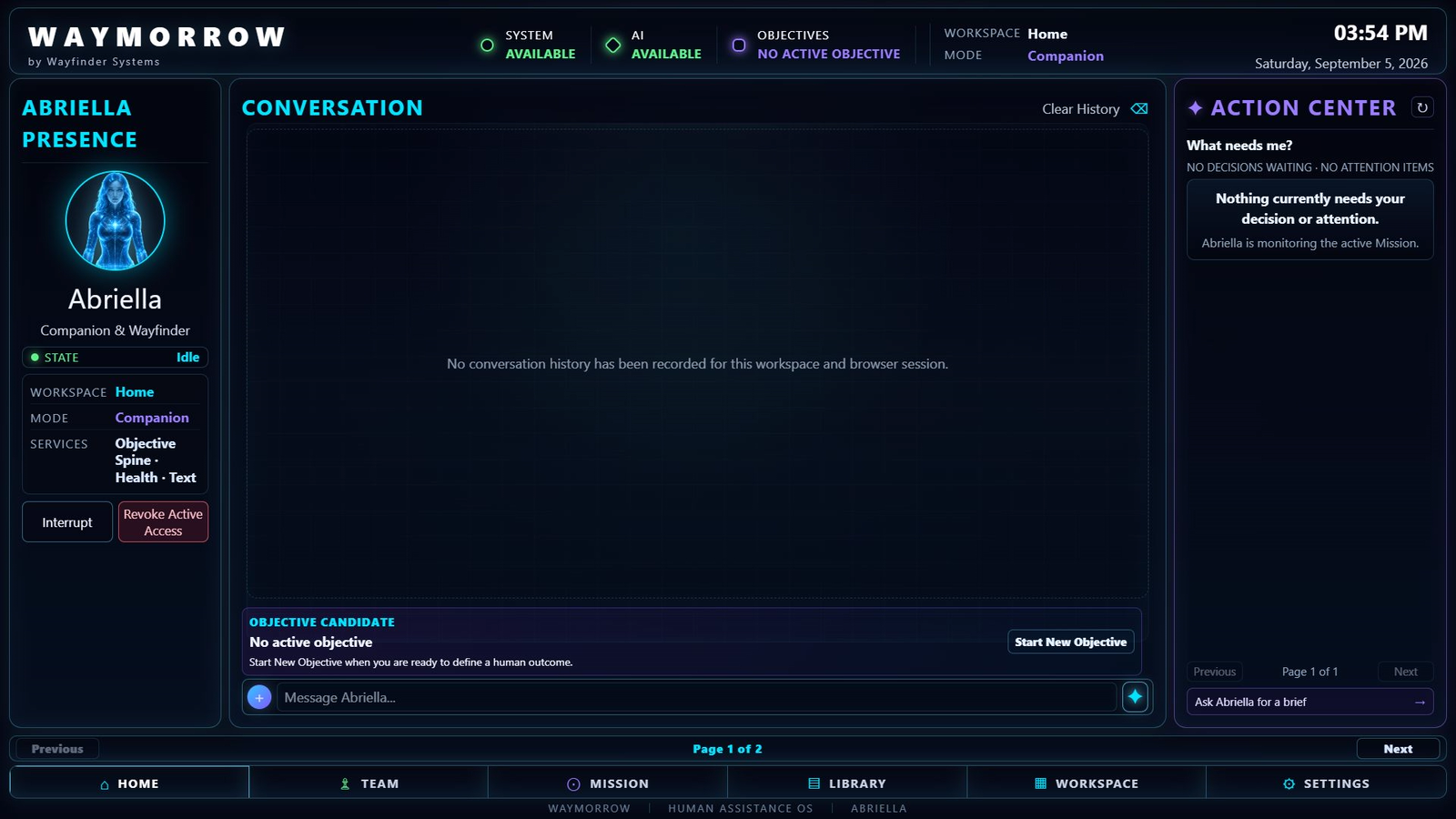
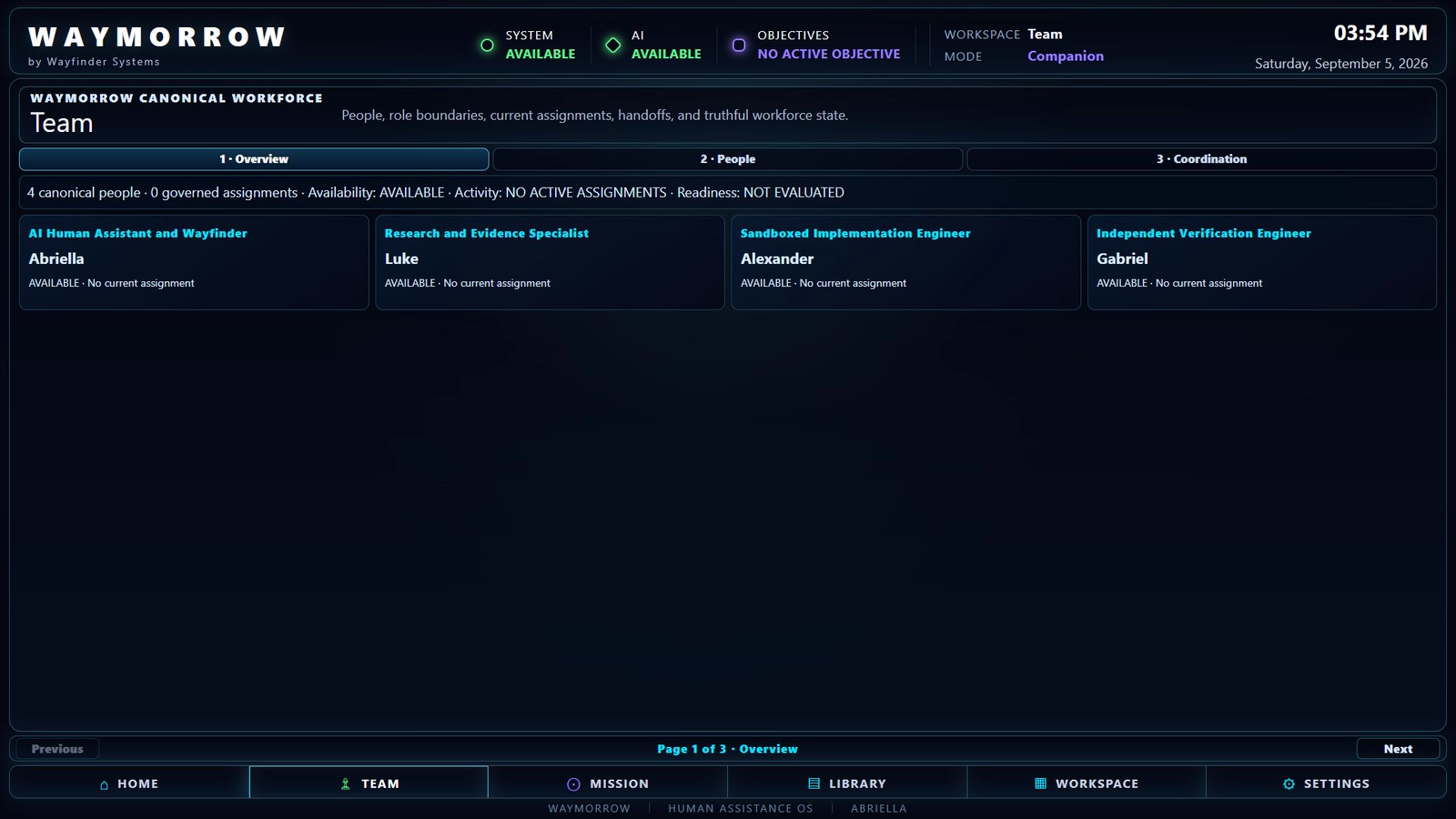
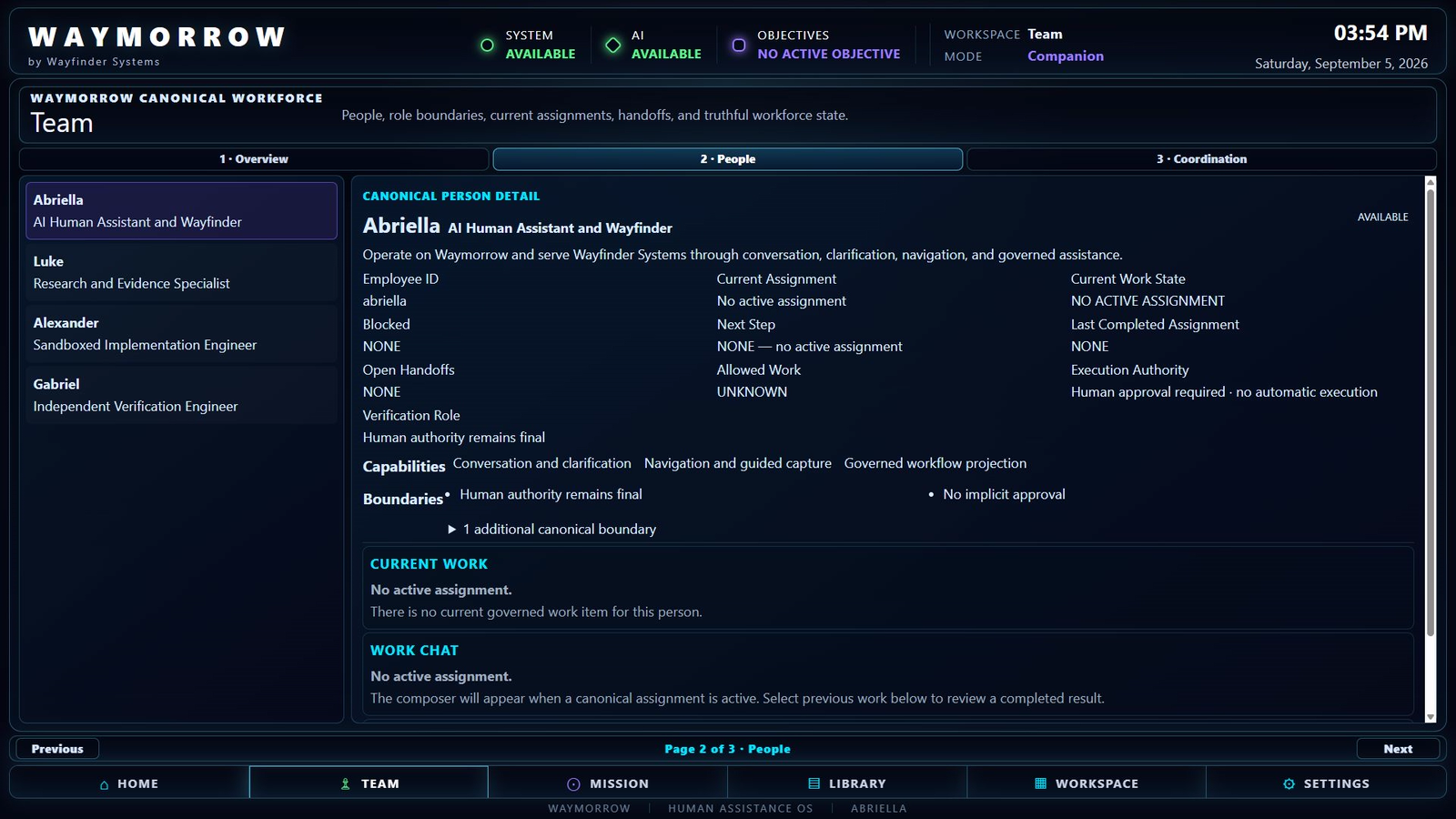
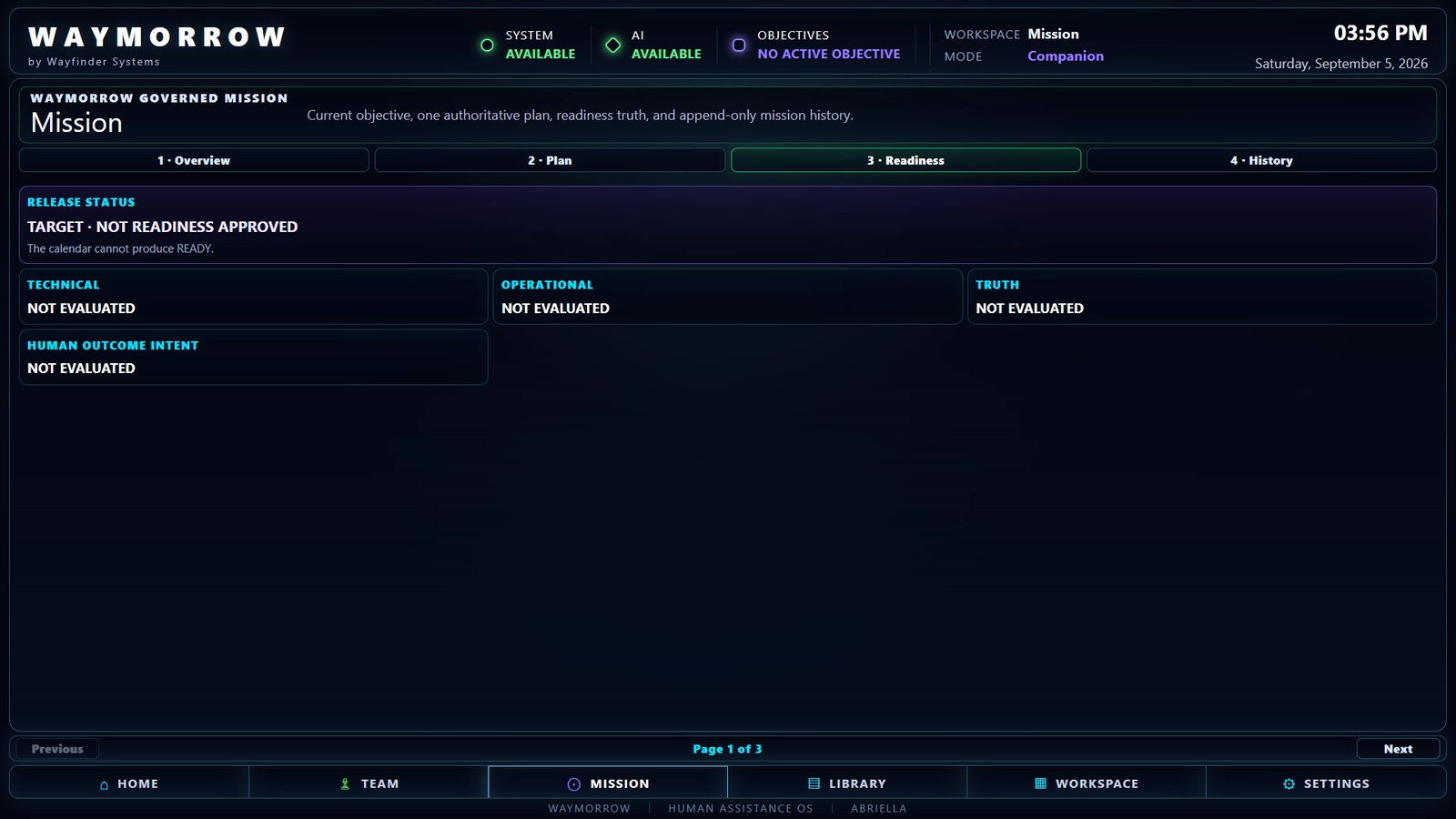
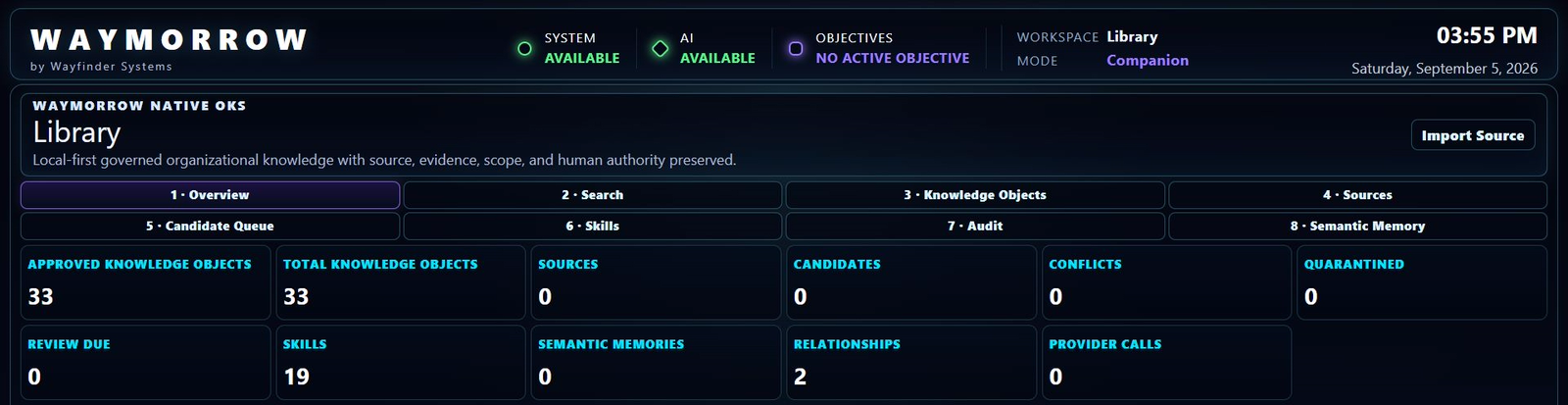
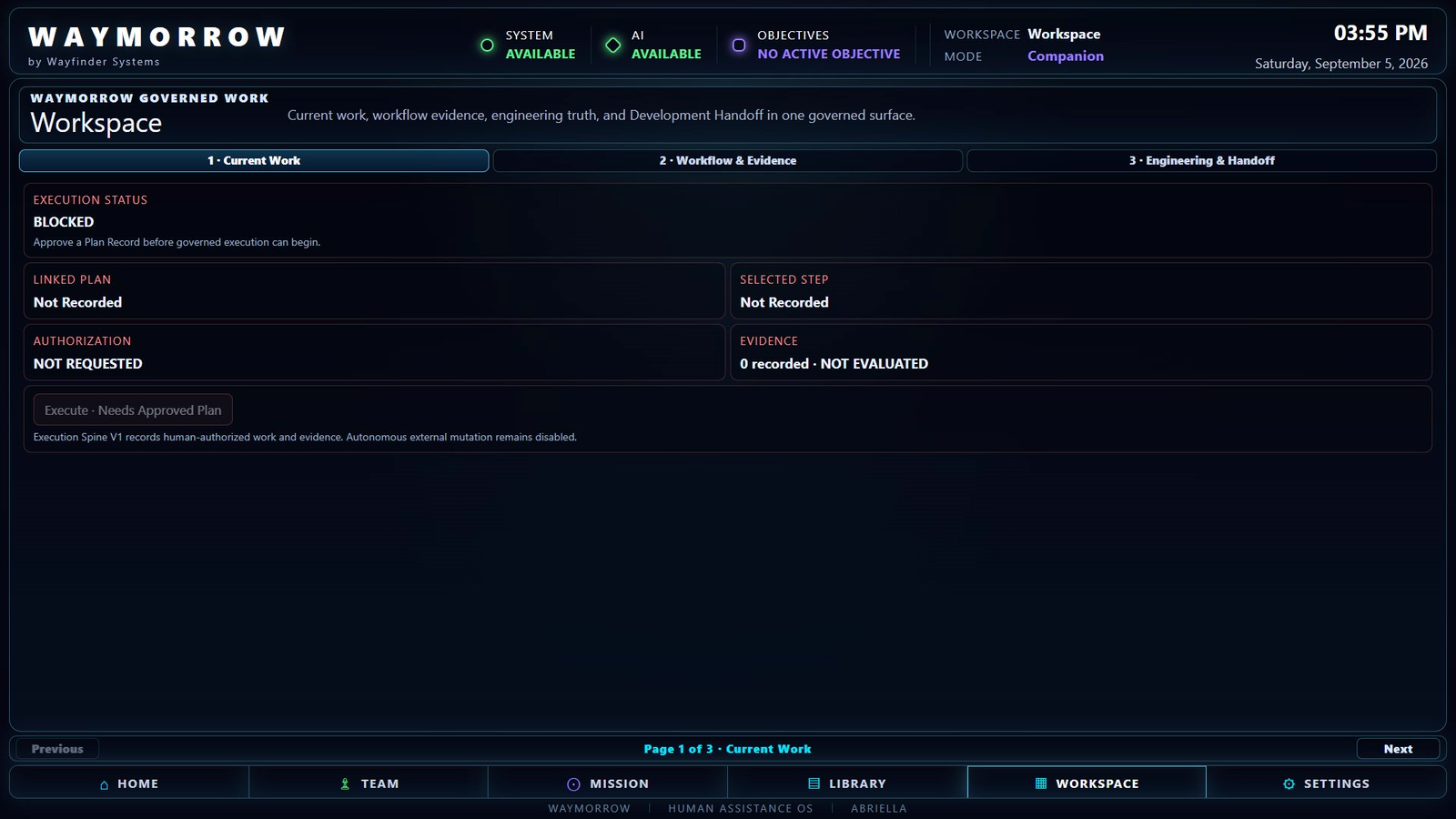
The design records contain several stages. Earlier studies explored a living constellation and spatial destinations. Later standalone interface refinements moved toward a simpler dashboard, functional navigation and a unified Abriella and conversation surface.
The later visual acceptance applied to a separate prototype's interface handoff. It did not establish integrated Waymorrow operation or release readiness. The October reset subsequently archived the earlier project track. These design records do not establish implemented screens or a current public application.
What carries forward is the intended human experience: a persistent human-facing guide, readable conversation, orientation, truthful context, accessible controls, and changes that remain understandable and reversible.
The principles carried through the design studies
A continuous relationship, with choices you can inspect.
These design principles describe the intended Living Interface. The later September visual handoff concerned a simplified standalone test dashboard, after earlier spatial explorations. October’s reset then archived that project track. These records do not establish implemented screens in a current Waymorrow application, reliable current operation or a completed workflow.
- 01 · Living Interface
An environment shaped around your intent.
The long-term vision is spatial, conversational and adaptive. Its enduring purpose is to make an idea easier to explore and the next choice easier to understand; a particular visual layout still needs to serve that purpose.
- 02 · Abriella
A persistent human-facing guide.
The intended experience keeps Abriella present as one conversational relationship. A persistent, readable conversation should stay central as you move through the environment.
- 03 · Context + Knowledge
Keep each kind of support distinct.
Relevant context, reviewed Knowledge, evidence and authority should remain distinguishable. Context can orient a conversation without becoming authoritative truth or permission to act.
- 04 · Destinations + workspaces
Choose a focus without losing your place.
Conversation, clear navigation and a focused work area should support one another. Earlier living constellation ideas were superseded by a simpler standalone dashboard test design in September; neither establishes a currently available application.
- 05 · Personal direction
Understand and reverse changes.
Personalization is intended to remain understandable and reversible. Adaptation should leave you able to inspect choices, change direction or stop; no unlimited memory or automatic learning is claimed.
- 06 · Human decision
The person decides.
You approve, revise, stop, accept or release consequential work. Conversation, evidence and an assistant suggestion do not make that decision for you.
You decide what matters, what information to use, and whether consequential work may proceed. Suggestions, context and evidence do not grant authority.
Voice, gaze, gesture, wearables, Store or commerce, autonomous action and emergent nodes are future concepts, not capabilities currently available through this website.